Docker — A must know for Every Developer
For Beginners
Are you a developer who struggles with deploying applications in different environments? Docker can help!
Imagine you’re trying to bake a cake, but every time you use a different oven, the cake turns out differently because of the different settings. One day it’s perfect, the next day it’s burnt, and another day it’s undercooked. This is similar to what developers experience when deploying applications in different environments. Docker is like having a magical oven that always bakes your cake perfectly, no matter where you are.
So what exactly is Docker
Docker is a platform that packages applications and their dependencies into a little containers, ensuring they run same every time they’re deployed. It packs all the stuff your app needs to work — like code, libraries, and settings — into one box. This way, your app works exactly the same everywhere, whether it’s on your computer, a friend’s computer, or a server far away.
Getting started with docker
Go to the Docker website and download Docker Desktop for your operating system. Follow the installation instructions for your OS.
Below, I’ve added links to the installation process for each OS. You can follow these or check out the official Docker website.
Running a simple Application with docker container
- Check if Docker is Installed Correctly
Open your terminal.
Type the command:
docker --version
- You should see the Docker version information displayed. This confirms that Docker is installed and ready to use.
2. Pulling an Image
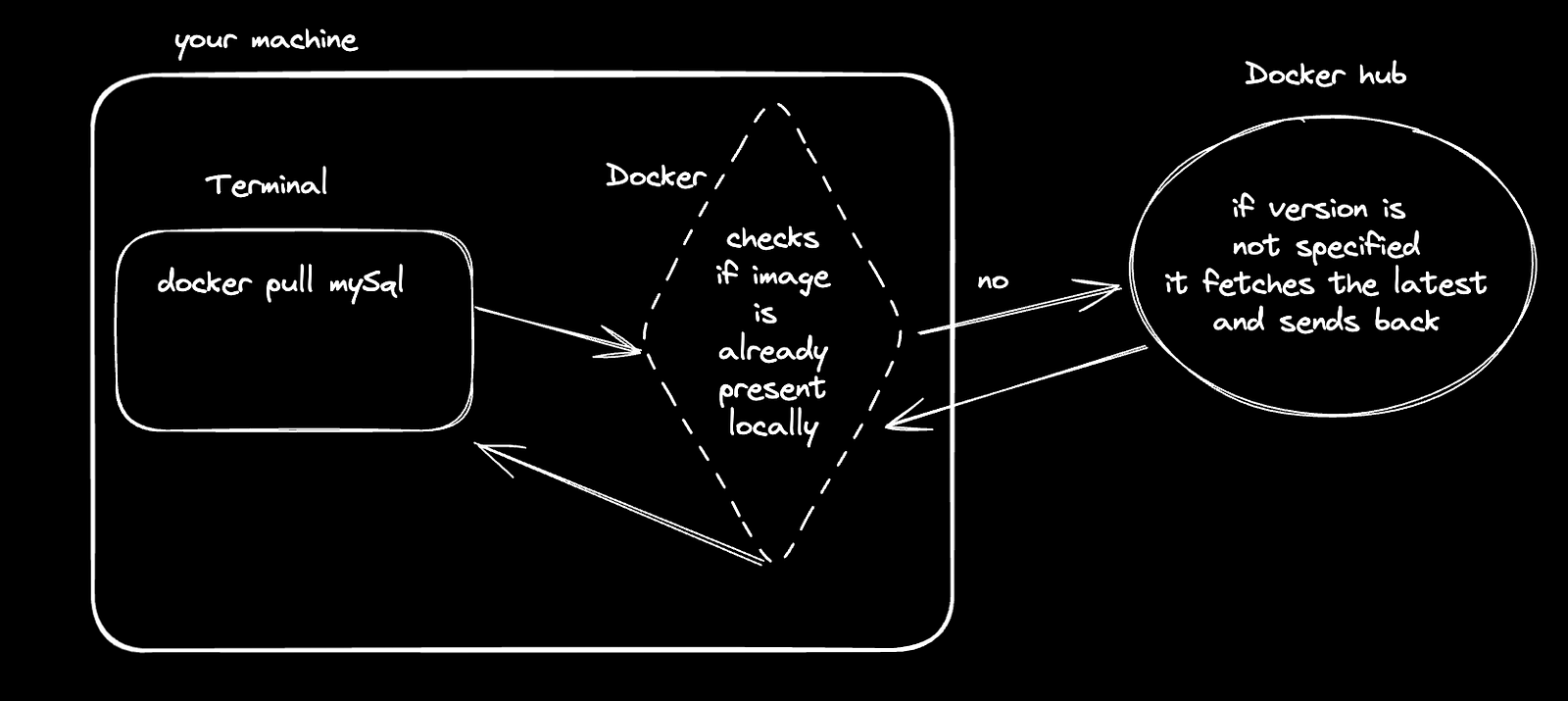
When you pull an image, you’re downloading a ready-made package (like a recipe) from Docker’s library (Docker Hub). This image contains everything you need to run a specific piece of software, in this case, MySQL.
Type the command:
docker pull mysql
3. Running the container
When you run the container, Docker takes the MySQL image you pulled (downloaded) and starts it as an isolated environment on your computer. It’s like using the recipe you downloaded to bake a cake in a mini kitchen (container) that Docker sets up for you.
Run the command
docker run - name mysql-container -e MYSQL_ROOT_PASSWORD=my-secret-pw -d mysql
Docker starts the container and runs MySQL inside it. The
--nameflag gives the container a name,-esets an environment variable for the MySQL root password, and-druns the container in detached mode (in the background).If you want to see the logs, you can simply omit
-dand it will show you the logs.
4. Checking all the running containers
How to check the status of your container? You can check if your MySQL container is running and see its details using Docker commands.
Type the command:
docker ps
- This command lists all running containers. You should see your
mysql-containerlisted with its status and port information.
5. Entering the MySQL Console
You can access the MySQL console from within the container to interact with the MySQL database directly.
Type the command:
docker exec -it mysql-container mysql -uroot -p
You’ll be prompted to enter the MySQL root password (which you set as
my-secret-pw). After entering the password, you'll be in the MySQL console.Try creating the database and a few tables.
You can use this database in your project with the hostname: localhost, port: 5432 and the provided username and password.
This was your basic container setup. Additionally, let’s say there’s another application that requires a specific older version of MySQL. You can run the older version similarly to the above steps, but you need to pass the version in the Docker pull command, like so: docker pull mysql:5.6.23 and while running the container instead of using just mysql , use mysql:5.6.3
6. Using Docker Compose
What is Docker Compose? Docker Compose is a tool that helps you run multiple containers as a single application. It uses a YAML file to define and run multi-container Docker applications. It’s like having a detailed menu that coordinates several recipes to create a full meal.
When and Why to Use Docker Compose:
When: Use Docker Compose when you need to run more than one container at the same time, and they need to work together.
Why: It simplifies the process of managing multiple containers and their dependencies. For ex, if your app needs a web server and a database, Docker Compose makes it easy to start both containers and link them together.
Create a file named
docker-compose.ymlin your project directory.Define your services (containers) in this file. For ex, to run PostgreSQL and two versions of MySQL:
version: '3'
services:
  postgres:
    image: postgres
    environment:
      POSTGRES_PASSWORD: mysecretpassword
  mysql1:
    image: mysql:5.7
      environment:
        MYSQL_ROOT_PASSWORD: my-secret-pw
  mysql2:
    image: mysql:8
      environment:
        MYSQL_ROOT_PASSWORD: my-secret-pw
- Start the services using Docker Compose:
docker-compose up -d
When you run the above command all the services start running in the background because of the
-dargument.Similarly, to stop the services, you can use the command:
docker-compose down
SUMMARY
Docker is like having well-organized toolboxes for your projects, ensuring everything you need is in one place and works consistently. Docker Compose is your master plan for using multiple toolboxes together, making complex setups simpler. Whether you’re working on one project or many, Docker and Docker Compose help everything fit together and run smoothly.